
How do I set up a pre-order campaign on Shopify?
Updated · SMART Preorder & Back in stock (E-TRADE PARTNER)
In the app, open Pre-orders, click Create campaign, pick the products, how customers pay and when you expect to ship, then click Create. A new campaign saves as Inactive, so click Activate next, and make sure the app embed is on in your theme so the Pre-order button can show.
SMART Preorder & Back in stock is a free Shopify app for pre-orders, deposits, and back-in-stock alerts.
Try it freeOn this page
Before you start
- The app embed must be on. In your theme editor, open App embeds, turn on Pre-order & Back in stock and press Save. Without it the Pre-order button can't show. See Enable the app embed.
- Your payment provider must support pre-orders. Shopify sells pre-orders only through Shopify Payments, PayPal Express, Adyen on Shopify and, for some merchants, Stripe (Shopify developer docs).
- For pre-orders that start when stock runs out, the variant needs Track quantity turned on in Shopify. Untracked variants never sell out.
Step by step
- Open Pre-orders in the app menu and click Create campaign. The editor has three tabs, Campaign, Design and Settings, with a live preview of your product on the right.
- On the Campaign tab, enter a Campaign name. Only you see it.
- In the Products card, choose Specific products, Collections or All products and add them. Details in Choose products for a campaign.
- In the Availability card, choose when the Pre-order button shows: When the product is out of stock (the default), Always, Only while the product is in stock or Coming soon (scheduled launch). Optionally tick Set start date and Set end date. Times are in your store's time zone. Not sure whether you need a pre-order or a plain backorder? See Pre-order vs backorder.
- In the Payment card, keep Full payment or choose Deposit, then set the deposit and when the balance is collected. See Take a deposit, charge the balance later. You can also tick Apply discount here.
- In the Delivery card, pick the Estimated delivery: Ships as soon as possible (default), Ships within a set window (e.g. 2-4 weeks), Ships on a specific date or Ship date not known yet. Shoppers see this text under the button and in the confirmation email.
- On the Design tab, set the button text (default "Pre-order now"), an optional badge, a countdown and translations. See Pre-order button, badge and countdown.
- On the Settings tab, check the Purchase option name (default "Pre-order", shown under the product name in the cart and at checkout), Mixed carts, Unit limit, Inventory, Fulfillment (Unfulfilled or On hold), order and customer Tags (the order tag "Pre-order" is added by default) and Checkout mode.
- Click Create in the save bar. The campaign is saved as Inactive and a banner says Campaign created. What's next?
- Click Activate, then Activate in the dialog. If the app embed is off, the dialog asks you to turn it on first: click Open theme editor, turn it on, press Save, then Check again.
- Open a product from the campaign in your store. The first time a campaign goes live, the app asks Do you see the Pre-order button? If you don't, No, get help opens a support chat, and Pre-order button not showing lists what to check.
What the shopper sees
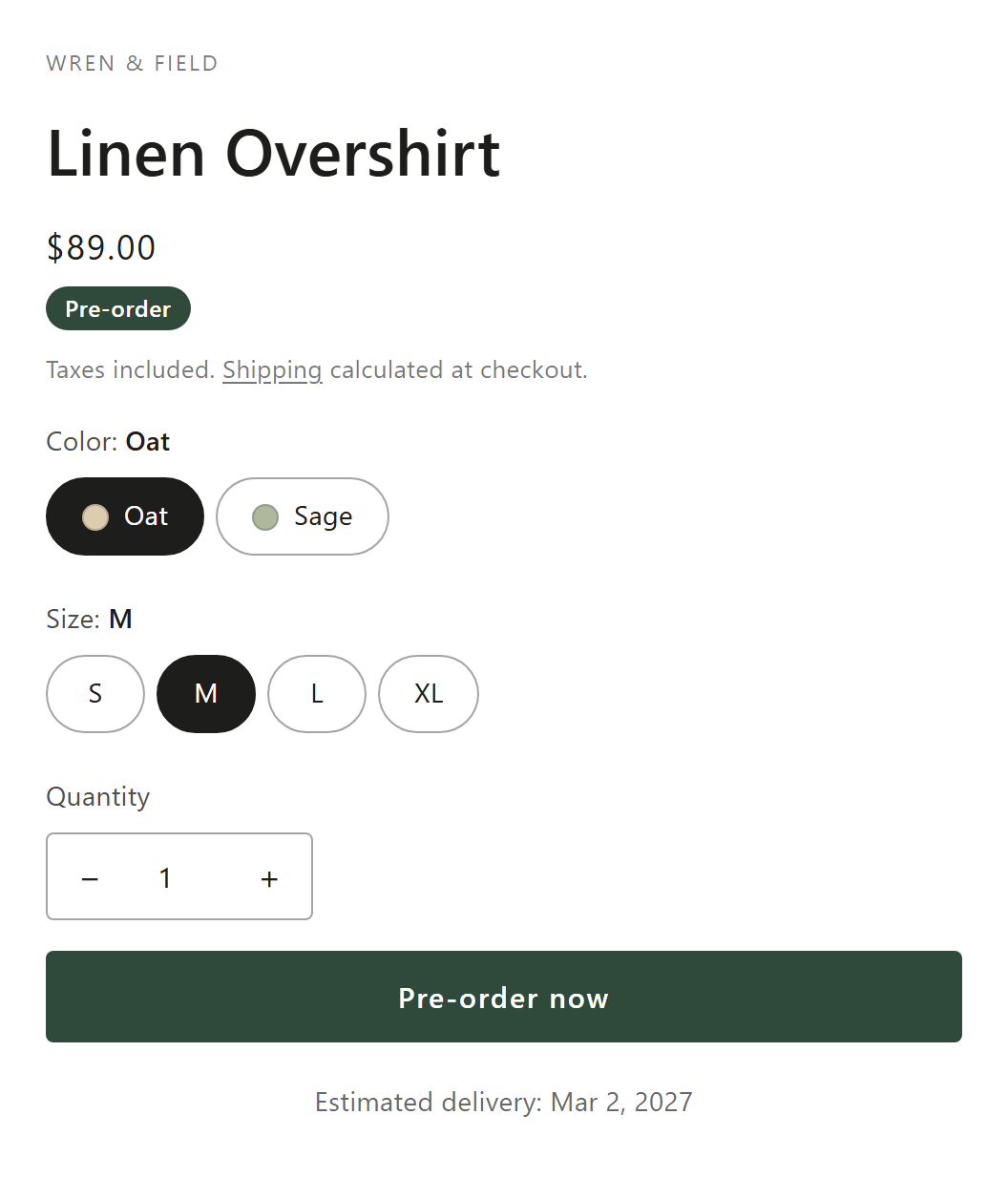
- The Pre-order button in place of Add to cart, in your theme's button style unless you set a custom style.
- The delivery message under the button, and for deposit campaigns a payment line such as "Pay $50.00 now, $50.00 due Dec 1, 2026".
- No Buy it now or express checkout buttons on that variant while the Pre-order button shows. Shopify doesn't sell pre-orders through Shop Pay, Apple Pay or Google Pay (Shopify Help Center).
- In the cart and at checkout, the purchase option name under the product and a line such as "Delivery: Ships as soon as possible" (on by default, also on the order and packing slips).
- After checkout, the Pre-order confirmation email (on by default). The order gets the "Pre-order" tag seconds after Shopify creates it.
Campaign statuses
| Status | What it means |
|---|---|
| Active | Live on your storefront and taking pre-orders. |
| Inactive | Never activated, or deactivated. Shoppers don't see it. |
| Scheduled | Active, but the start date is still ahead. |
| Expired | The end date passed, or the balance date of a deposit campaign with a set balance date passed. |
| Limit reached | A whole-campaign unit limit is used up, so the Pre-order button is hidden. |
Shopify rules that apply to every pre-order
- Pre-orders work in the Online Store and custom storefronts. Shopify doesn't support them in Shopify POS or on draft orders (Shopify developer docs).
- Local payment methods such as Klarna and iDEAL can't buy pre-orders (Shopify Help Center).
- Shopify asks you to have a reasonable basis for any ship time you state. With no date stated, you should expect to ship within 30 days, and if a shipment is delayed you must give a new date and explain the customer's right to cancel or get a refund. The Shipping update email is how you tell customers. See Pre-order emails.
Edge cases
- Editing a live campaign: the storefront changes when you save. Placed orders keep the payment terms Shopify set at checkout. To move an order's balance date, use Change balance date on the order. See Manage pre-orders.
- Moving the delivery date later: if the campaign has open pre-orders, saving offers Send a shipping update? to email those customers.
- Deactivate or delete: existing pre-orders are not changed. Their balances are still charged and their holds still released. Deleting also removes the Pre-order option from the products and puts their "Continue selling when out of stock" setting back.
- Duplicate: the editor's Duplicate opens an inactive copy with the same settings, design and translations. Products, collections, unit limits per variant and the schedule aren't copied.
- "Saved in Shopify, but the app couldn't finish setting it up": shoppers may not see the change yet. Click Retry in that banner.
Start taking pre-orders today
SMART Preorder & Back in stock is free on the Shopify App Store: full payment or deposits, holds, limits and emails included.
Install free on ShopifyFrequently asked questions
›The campaign is active but I don't see the Pre-order button. What should I check?
Most often the app embed is off in the published theme, or the campaign isn't Active yet. The full checklist is in Pre-order button not showing.
›Does deactivating a campaign cancel its orders?
No. Deactivating only removes the Pre-order option from your storefront. Orders already placed keep their deposit, balance date and holds, and the app keeps charging and releasing them.
›Do I need to edit my theme code?
No. Everything runs from the app embed. If the button lands in the wrong place on a heavily customized theme, use Settings > Theme compatibility in the app, or contact us by chat or email (support@etradepartner.io).