
How do I customize the Pre-order button, badge and countdown?
Updated · SMART Preorder & Back in stock (E-TRADE PARTNER)
Open the campaign's Design tab. Button sets the label (default "Pre-order now") and an optional custom style, Badge adds a small label under the price or on the product image, and Countdown timer counts down to the campaign's end date. The delivery message under the button comes from the Delivery card on the Campaign tab.
SMART Preorder & Back in stock is a free Shopify app for pre-orders, deposits, and back-in-stock alerts.
Try it freeOn this page
Button
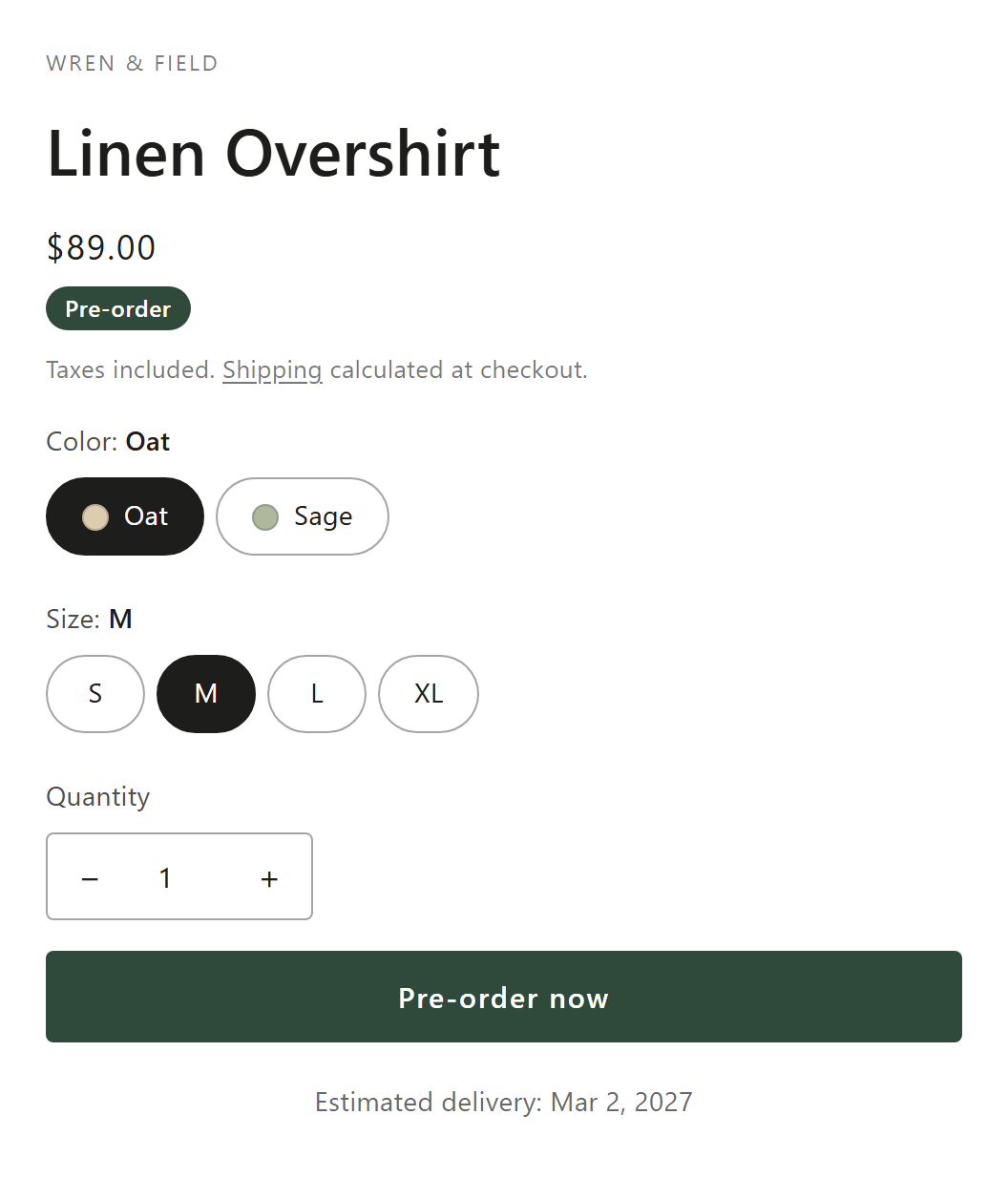
- Button text: the label shoppers click. Default "Pre-order now".
- Use custom style: off, the button keeps your theme's style. On, you set Background, Text color, Border color, Border width (0 to 10 px), Corner radius (0 to 50 px) and Font size (10 to 32 px).
- Show on product cards: collection, search, home page and related product cards that have an add to cart button show the button text, plus the badge when it's on. Featured product sections and quick view always work like the product page. Your theme's own card button or quick add must be turned on.
Badge
Turn on the Badge card to show a small label while the variant is on pre-order. It's off by default.
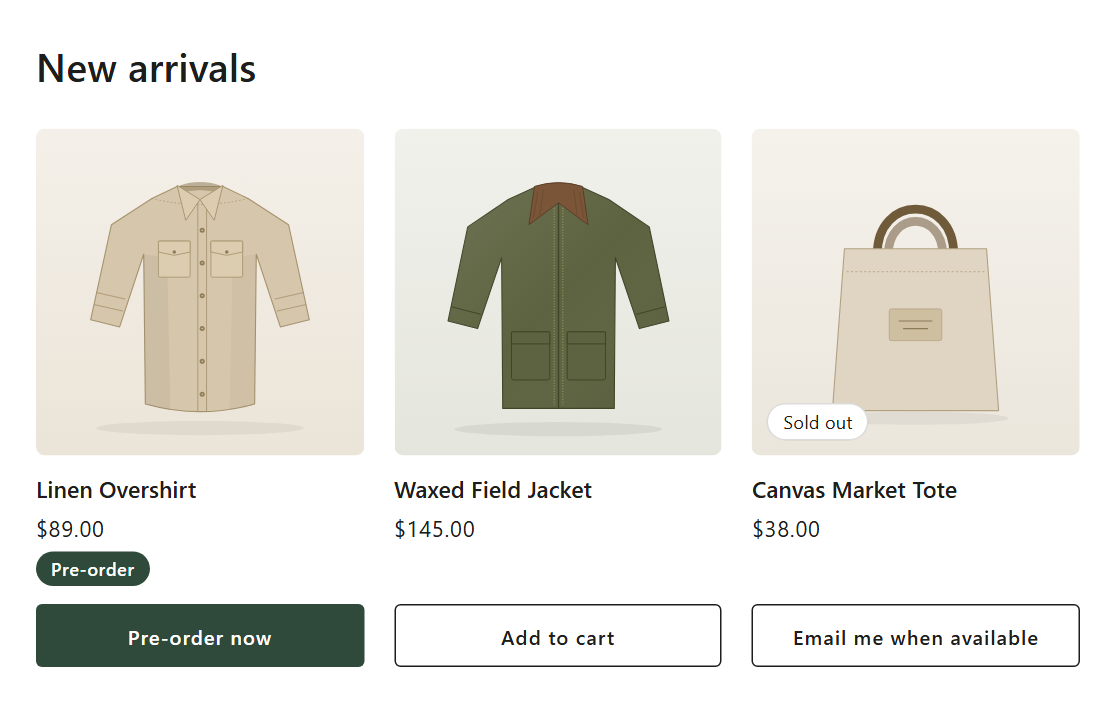
- Badge text: default "Pre-order".
- Position: Under the price, or On the product image (top left corner). If the app can't find your theme's product image, the badge shows under the price.
- Background and Text color.
Messages under the button
The delivery message follows the Estimated delivery you picked in the campaign's Delivery card:
| Estimated delivery | Default text shoppers see |
|---|---|
| Ships as soon as possible | Ships as soon as possible |
| Ships within a set window (e.g. 2-4 weeks) | Ships 2-4 weeks after purchase (your numbers and unit) |
| Ships on a specific date | Estimated delivery: Dec 1, 2026 (your date) |
| Ship date not known yet | Ship date to be confirmed |
- Tick Show custom message to write your own. With a specific date you can insert {{delivery_date}}.
- Deposit campaigns add a Payment message in the Design tab's Messages card. Default: "Pay {{deposit_amount}} now, {{remaining_amount}} due {{charge_date}}". The amounts are Shopify's own deposit figures for the selected variant. {{charge_date}} is the date the balance is due, or "when your order ships" when the balance is collected on fulfillment.
- Coming soon campaigns get Coming soon button text (default "Coming soon") and an optional Coming soon message, shown before the launch.
Countdown timer
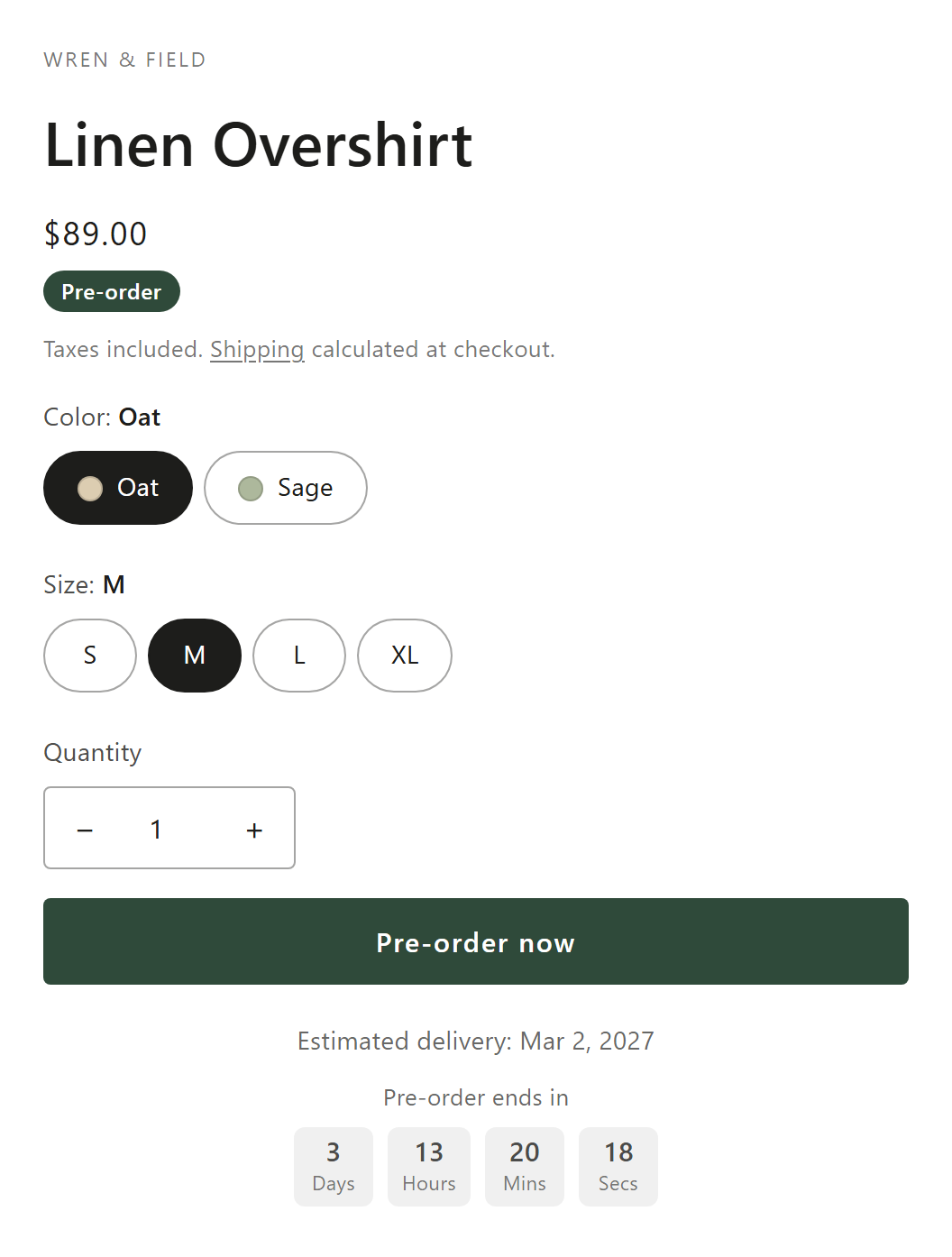
- Turn on the Countdown timer card. It counts down to the campaign's end date, so set one first under Set end date on the Campaign tab, or the editor shows "Set an end date on the Campaign tab".
- A deposit campaign that collects the balance On a set date stops taking pre-orders on that date, so if it comes before the end date the countdown runs to the balance date.
- Heading: default "Pre-order ends in". Leave it empty to hide it.
- Unit labels: Days, Hours, Minutes, Seconds (defaults Days, Hours, Mins, Secs). Use custom colors sets the background and text color.
- Coming soon campaigns always count down to the launch, with Heading before the launch (default "Pre-orders open in"). Tick Then count down to the end date for a second countdown after the launch.
- The countdown runs on the shopper's device clock. When the end time passes, an open page drops the Pre-order button without a reload. When a coming soon launch arrives, an open page switches to the Pre-order button.
Cart and checkout text
- On the Settings tab, Purchase option name (default "Pre-order") shows under the product name in the cart and at checkout.
- Add a line to pre-order items (on by default) adds a line such as "Delivery: Ships as soon as possible" in the cart, at checkout, on the order and on packing slips. Edit its Name and Text; deposit campaigns can also use the deposit, balance and charge date variables.
Translations
The Translations card at the bottom of the Design tab lists every language you've published in Shopify. Pick a Language and translate the button, badge, delivery and payment messages, coming soon texts, countdown texts and the cart line. Empty fields use your default-language text. With only one language published, the card says to publish another one in Shopify first. After you save, a banner names any published language that has no translation yet.
Other changes on the product page
- Buy it now and express checkout buttons are hidden on the selected variant while the Pre-order button or a Coming soon button shows. Other variants keep them.
- Notify me doesn't show on variants a live pre-order sells, unless back in stock's Also show on pre-order products is on. See Set up Notify me.
Button in the wrong place, or not showing
The app finds your theme's buy button, form and prices automatically. On heavily customized themes, open Settings > Theme compatibility in the app. It has element selectors (product form, add-to-cart button, message position, prices, cards, quick view), an Express checkout selector for extra Buy now buttons, and Custom CSS. Its Behavior options, such as Replace the buy button instead of relabeling it, are meant to be turned on when our support asks. If the button doesn't show at all, work through Pre-order button not showing, or contact us by chat or email.
Make pre-orders look like part of your store
Theme-styled button, badge, countdown and translated messages, with no theme code edits. Free on the Shopify App Store.
Install free on ShopifyFrequently asked questions
›Why don't I see Buy it now or Apple Pay on my pre-order product?
That's on purpose. Shopify doesn't sell pre-orders through Shop Pay, Apple Pay or Google Pay, and a quick buy could skip the pre-order terms, so the app hides those buttons on the variant while the Pre-order button shows.
›Can the countdown show without an end date?
No. The countdown counts to the campaign's end date, so set an end date on the Campaign tab first. Coming soon campaigns count down to their start date instead.
›The button keeps going back to Add to cart on my theme. What can I do?
Contact us by chat or email. Settings > Theme compatibility has an option for this, Replace the buy button instead of relabeling it, which hides the theme's button and shows a copy the app controls; the page asks you to turn its Behavior options on only when our support suggests it.