
How do I set up the Notify me button?
Updated · SMART Preorder & Back in stock (E-TRADE PARTNER)
Open Back in stock in the app, click Activate, and turn on the app embed in your theme. Sold-out variants then show a Notify me button that opens a signup form, and each signup gets an email when you restock.
SMART Preorder & Back in stock is a free Shopify app for pre-orders, deposits, and back-in-stock alerts.
Try it freeOn this page
Turn it on
- In the app, open Back in stock and click Activate, then Activate again in the dialog. Back in stock starts off on every store.
- If the page shows The app embed is inactive, click Activate app embed. Your theme editor opens with the embed switched on. Click Save there, then Refresh status in the app. Details: Turn on the app embed.
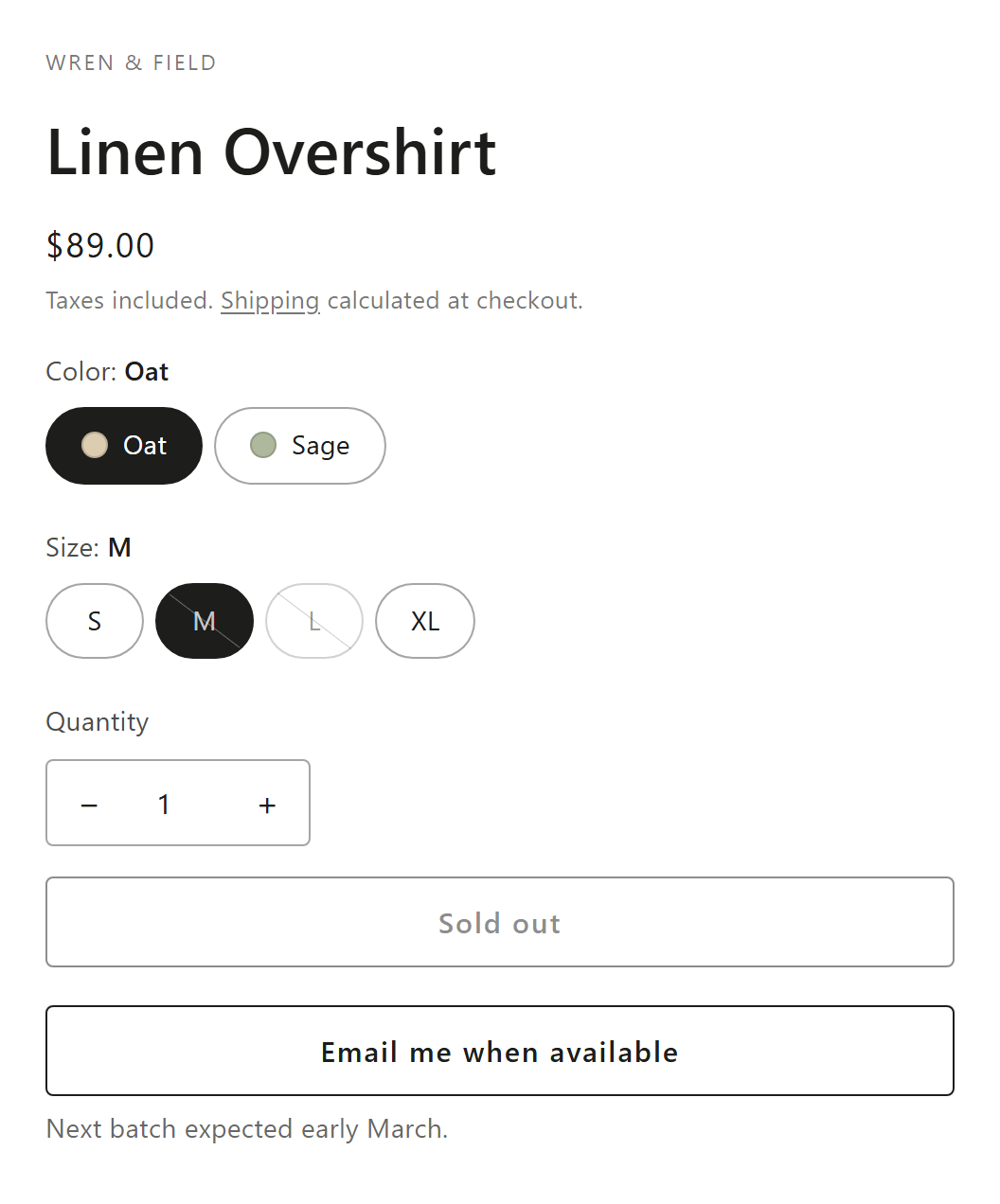
- Open a sold-out product on your store. The Notify me button sits under the sold-out add to cart button. Right after you activate, the app asks Do you see the Notify me button? If you don't, No, get help opens a chat with our team.
- Sign up with your own email to see the form and the message shoppers get after signing up.
Activating shows the button. The email is a separate switch.
Whether signups are emailed on restock depends on the Back in stock email in Back in stock > Notifications, which is active by default. See Back in stock emails.
What shoppers see
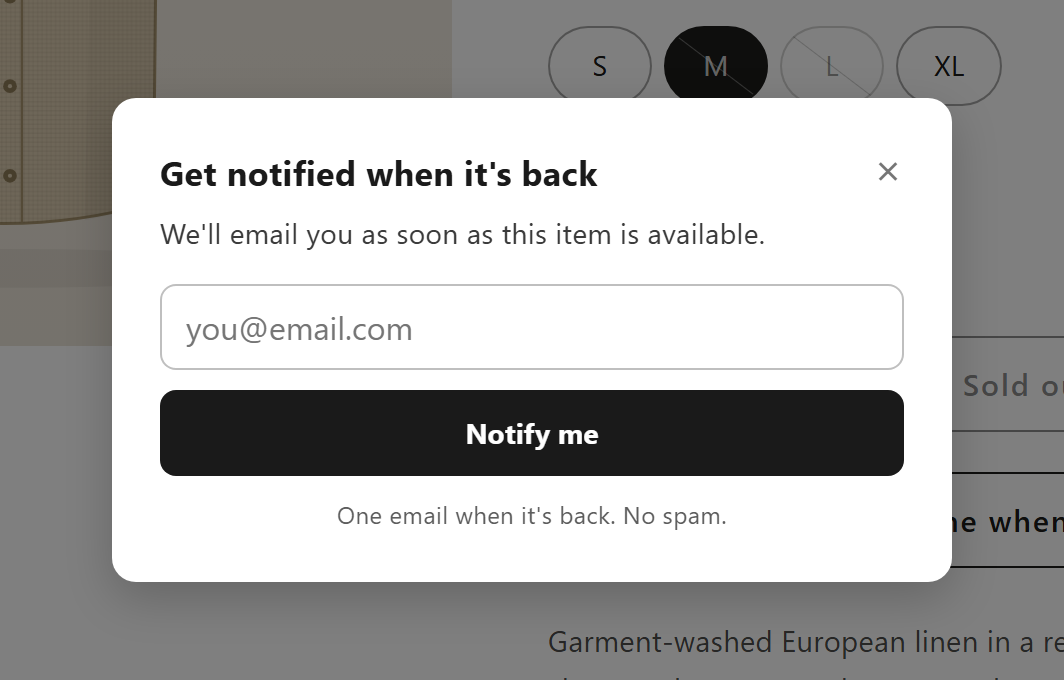
On a sold-out product page, a button that says Email me when available (you can change the text). It copies the look of your theme's add to cart button unless you turn on Use custom style. Clicking it opens the signup form.
| Part of the form | Default text |
|---|---|
| Heading | Get notified when it's back |
| Description | We'll email you as soon as this item is available. |
| Email field | you@email.com |
| Button | Notify me |
| Terms message (small print) | One email when it's back. No spam. |
| After signing up | You're on the list! We'll email you as soon as it's back in stock. |
A name field and a marketing consent checkbox are off by default. You can turn on both in the signup form settings.
Which variants show Notify me
The button shows for the variant the shopper has selected when all of these are true:
- Back in stock is Active and the app embed is on in your published theme.
- The variant is sold out: Track quantity is on and its quantity is 0 or less, or Shopify reports that it can't be sold.
- The product passes your Where it shows setting (below).
- No Coming soon pre-order teaser is showing on the page.
- Shopify doesn't still sell the variant. A live pre-order, or Continue selling when out of stock at 0, keeps it buyable, so Notify me stays hidden there unless you turn on Also show on pre-order products. Then it shows under the Pre-order or Add to cart button.
Variants with Track quantity off never sell out, so they don't show the button. When the shopper switches variants, the button shows or hides for the new one. If a pre-order campaign is limited to some markets, shoppers in other markets see Notify me on sold-out variants instead of the pre-order.
Choose where it shows
Go to Back in stock > Design > Notify me button. Under Where it shows, pick one:
- All sold-out products (default)
- Products in specific collections. On product cards it shows only on those collections' own pages.
- Products with specific tags
- Specific products
Except with Specific products, you can also add Excluded products and Excluded tags that never show the button.
Collection, home and search pages
Turn on Show on collection, home and search pages on the same page. Sold-out product cards that have a button then show Notify me instead of Sold out. For a product with several variants, the form lets the shopper pick the variant.
Button and form settings
| Setting | Page | What it does |
|---|---|---|
| Button text | Notify me button | The text under the sold-out add to cart button |
| Use custom style | Notify me button | Your own background, text and border colors, border width, corner radius and font size. Off: the theme's button look |
| Also show on pre-order products | Notify me button | Shows the button on variants Shopify still sells at 0, for shoppers who'd rather wait for stock |
| Restock notes | Notify me button | A short note under the button for chosen variants, like "Back March 15". Product page only, up to 120 characters |
| Heading, Description | Signup form | Can include {{product_title}} |
| Name field | Signup form | Don't ask, Optional or Required. The name fills {{customer_first_name}} in back in stock emails |
| Terms message | Signup form | Small print under the button. Leave it empty to hide it |
| Marketing consent | Signup form | An optional checkbox, never pre-ticked |
| After signing up | Signup form | The heading and description shown after a signup |
| Error messages | Signup form | Invalid email and Something went wrong |
| Style | Signup form | Form and button colors, and corner radius |
Both design pages show a preview on one of your products. Change preview product picks another, and Preview in store opens the live product page.
Marketing consent
Every signup gets the back in stock email, ticked or not. The checkbox only decides marketing. When a shopper ticks it, the app subscribes them to email marketing in Shopify (single opt-in) and tags the customer back-in-stock. It never lowers a consent the customer already has and leaves customers who unsubscribed alone. If you connected Klaviyo in Settings > Integrations and picked a List for marketing signups, they join that list too.
Limits and edge cases
- Deactivate removes the button but keeps your signups, and the automatic emails keep going on restock. To stop them, deactivate the Back in stock email in Notifications.
- The form turns away addresses on domains that can't receive email, like a typo such as gmail.con, and shows your Invalid email message.
- The form always says the signup worked, but some aren't stored: an address that stopped all alerts from your store, more than 10 signups from one address in a day, or more than 20,000 signups for your store in a day. Too many tries from one network in a minute show Something went wrong.
- Shopify's own texts, like Sold out, come from your theme. For other languages, see Translations.
Start collecting back in stock signups
Install SMART Preorder & Back in stock, activate Notify me and turn on the app embed.
Install free on ShopifyFrequently asked questions
›Why doesn't Notify me show on a product with Continue selling on?
Shopify still sells that variant at 0, so the regular Add to cart works and Notify me stays hidden. Turn on Also show on pre-order products in Back in stock > Design > Notify me button to show it under the button anyway.
›Can I show Notify me only on some products?
Yes. In Back in stock > Design > Notify me button > Where it shows, pick specific collections, tags or products, and add excluded products or tags if you need to.
›I activated back in stock but don't see the button. What should I check?
Check that the app embed is on and saved in your published theme, that the variant you're looking at tracks quantity and is at 0, and that no pre-order or Continue selling still sells it. Then hard-refresh the product page.