
When are back in stock emails sent, and how do I edit them?
Updated · SMART Preorder & Back in stock (E-TRADE PARTNER)
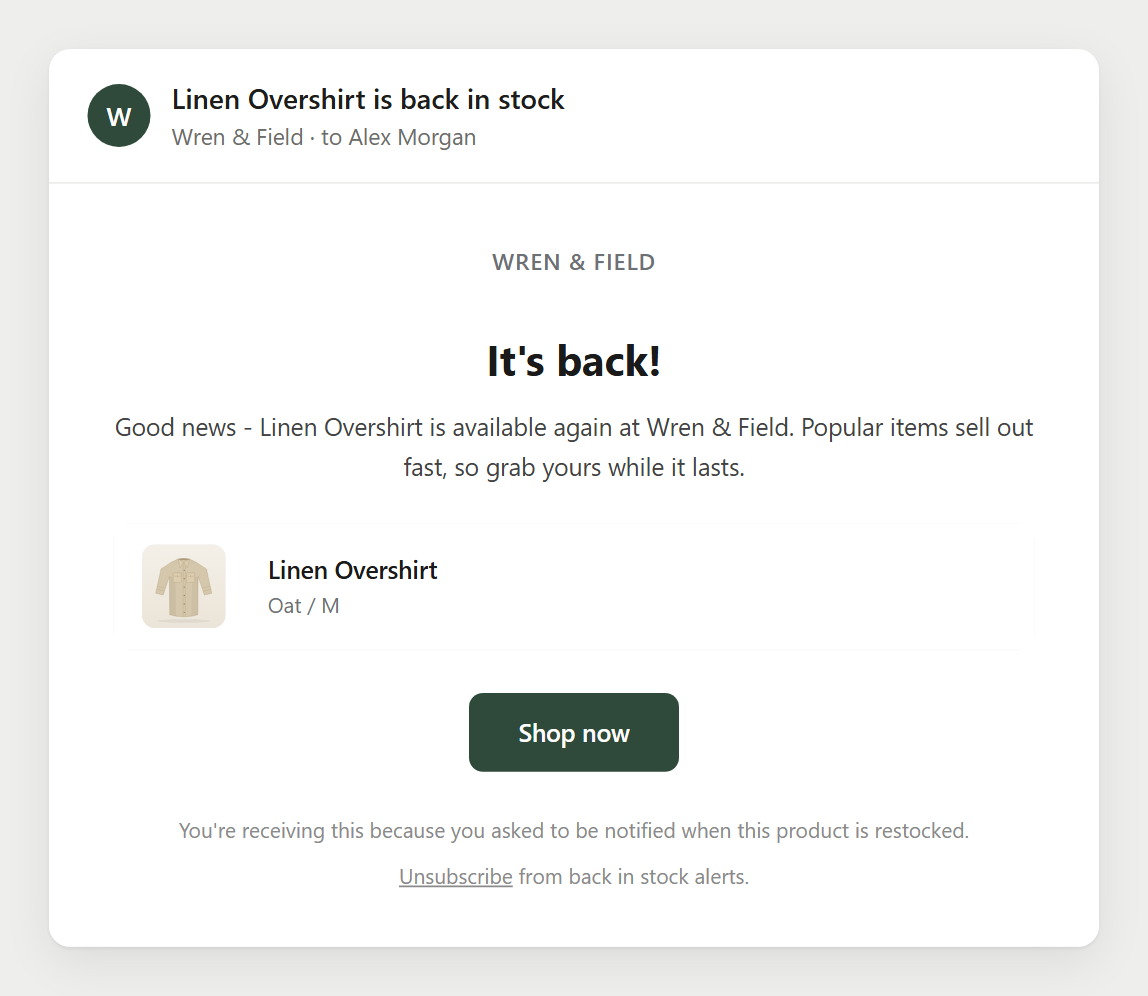
When a sold-out variant with waiting signups is back in stock and Shopify sells it again, the app sends each waiting signup the Back in stock email, once. It's active by default. You edit it, and two optional emails, in Back in stock > Notifications.
SMART Preorder & Back in stock is a free Shopify app for pre-orders, deposits, and back-in-stock alerts.
Try it freeOn this page
The three back in stock emails
| Default | When it's sent | |
|---|---|---|
| Signup confirmation | Inactive | Right after a shopper signs up. Not for someone already waiting on that variant, and not for imported signups |
| Back in stock email | Active | When you restock, or when you send it by hand from Signups |
| Reminder email | Inactive | A day after the back in stock email, if the shopper hasn't bought and the item is still in stock |
Each signup gets the automatic back in stock email once. After that its status is Notified, and later restocks don't email it again. If the same shopper signs up again for that variant, the signup starts over and waits for the next restock.
What makes the email go out
A stock change in Shopify starts the check, usually within seconds. The app then reads the variant again and emails waiting signups only when all of these are true:
- The Back in stock email is active.
- The available quantity at your active locations that fulfill online orders reaches Minimum quantity (default 1). Stock at locations that don't fulfill online orders doesn't count, and Continue selling at 0 isn't stock.
- The product is active, published to your online store, and Shopify sells the variant.
- The variant is sold in the shopper's country, when the signup came with one.
- The signup is still waiting (not unsubscribed), your store has back in stock emails left today, and sending isn't paused.
Once stock reaches Minimum quantity, every waiting signup for that variant gets the email, not only as many as units came back. If a check can't finish, for example because Shopify doesn't answer, the app tries again within the hour. Every waiting signup is also checked again at least once a day.
Opening a pre-order isn't a restock
A pre-order campaign turns on Continue selling, which doesn't count as stock, so the waitlist isn't emailed when a pre-order opens. To tell them, use Send to all waiting in Signups. See Back in stock signups.
When to send: Minimum quantity and locations
Go to Back in stock > Notifications > When to send.
- Minimum quantity: emails wait until at least this many units are back, so 1 means any restock.
- Only count stock at chosen locations for each market: shows when you have more than one location that fulfills online orders and an active market. You pick locations per market, and stock is added up across them. Signups with no market, or a market without locations, keep waiting. Imported signups have no market, so with this on they're only sent by hand.
Edit an email
Open Back in stock > Notifications and click an email (they're also under Settings > Back in stock emails). Use Activate or Deactivate at the top to turn it on or off. The editor has three tabs:
- Content: Subject, Preview text, Heading, Body, Button text (empty hides the button), Button goes to (Product page, or Checkout, which puts the variant in a cart and opens checkout), Show the product, and Footer text.
- Brand: logo, colors, fonts and social links. They're shared by every customer email, pre-order emails too.
- Code: the whole email as HTML with Liquid, for a layout of your own. Keep the unsubscribe link. Custom code opens at the Growing store level (Plans and limits).
| Variable | What it shows |
|---|---|
| {{shop_name}} | Your store's name |
| {{product_title}} | The product that's back in stock |
| {{product_price}} | Its price when the email goes out, in the shopper's market currency when known (not in the signup confirmation) |
| {{customer_name}}, {{customer_first_name}} | The shopper's name, when the signup form asks for it |
Links in the email carry UTM tags (utm_source=smart-preorder, utm_medium=email), so the visits show in your analytics. A click shows as Clicked in Signups, and an order for that variant within 7 days of the email shows as Bought. Reset to default puts back the original text.
Test it
- Send test email sends the email with sample data and [Test] in the subject. It goes only to your store's email address in Shopify (the account or contact email), up to 10 a day.
- To test the whole flow: set a variant that tracks quantity to 0, sign up on the live product page, then add stock at a location that fulfills online orders, at least the Minimum quantity. The email usually arrives within minutes.
Limits
- Back in stock emails count toward a daily limit that depends on your store's level. The Back in stock email and the Reminder email count; signup confirmations have their own count with the same cap. Order emails never count. The day resets at midnight UTC.
- From 80% of the limit, Home and Back in stock show a banner. At the limit, emails wait and go out after the reset, and the store owner gets one email that day. Use Contact us to raise it if you need more.
- Stores below the Established level also have an hourly sending limit. Emails over it wait for the next hour. See Plans and limits.
- If too many emails bounce or get reported as spam, back in stock sending pauses. See Sender address and deliverability.
Edge cases
- Deactivating back in stock only hides the Notify me button. Automatic emails keep going on restock. To stop them, deactivate the Back in stock email, which stops the Reminder email too. When you turn it back on, waiting signups that are in stock go out within a day.
- A password-protected store still sends on restock, and the email's button lands on the password page. Deactivate the Back in stock email until you launch.
- Imported signups are emailed only after the variant sells out and comes back in stock.
- With Klaviyo connected, each email sends a Back in Stock Notified event. Shopify Flow gets a Back in stock alert sent trigger. The app still sends the email itself.
Email shoppers the moment stock is back
Install SMART Preorder & Back in stock. The back in stock email is ready to go, and you can edit it any time.
Install free on ShopifyFrequently asked questions
›I restocked, but nobody got an email. Why?
Check that the Back in stock email is active, that the stock is at a location that fulfills online orders and reaches Minimum quantity, that the product is active and on your online store, and that your store hasn't used today's back in stock emails or had sending paused. Signups for an imported list also wait until the variant sells out first.
›Can I send the email again to someone already notified?
Yes. In Back in stock > Signups, click Resend on the signup. It sends the same email again by hand.
›Does a restock of 1 unit email everyone on the list?
Yes, with Minimum quantity at 1. Raise Minimum quantity in When to send so emails wait until more units are back.