
Why isn't the Pre-order button showing on my store?
Updated · SMART Preorder & Back in stock (E-TRADE PARTNER)
Usually one of five things: the app embed is off in your published theme, the campaign isn't Active, the product or variant isn't in the campaign, the variant doesn't meet the campaign's Availability rule (for example it's still in stock), or the shopper's market isn't selected. Work through the checks below in order; each takes a minute.
SMART Preorder & Back in stock is a free Shopify app for pre-orders, deposits, and back-in-stock alerts.
Try it freeOn this page
- 1. Look at the live store, freshly loaded
- 2. Is the app embed on in the published theme?
- 3. Is the campaign Active?
- 4. Is the product (and variant) in the campaign?
- 5. Does the variant meet the Availability rule?
- 6. Sold out or Notify me instead of Pre-order?
- 7. Is the shopper's market selected?
- 8. On collection pages and quick add
- 9. Is your theme hiding or overwriting it?
- 10. Still not showing?
- Frequently asked questions
1. Look at the live store, freshly loaded
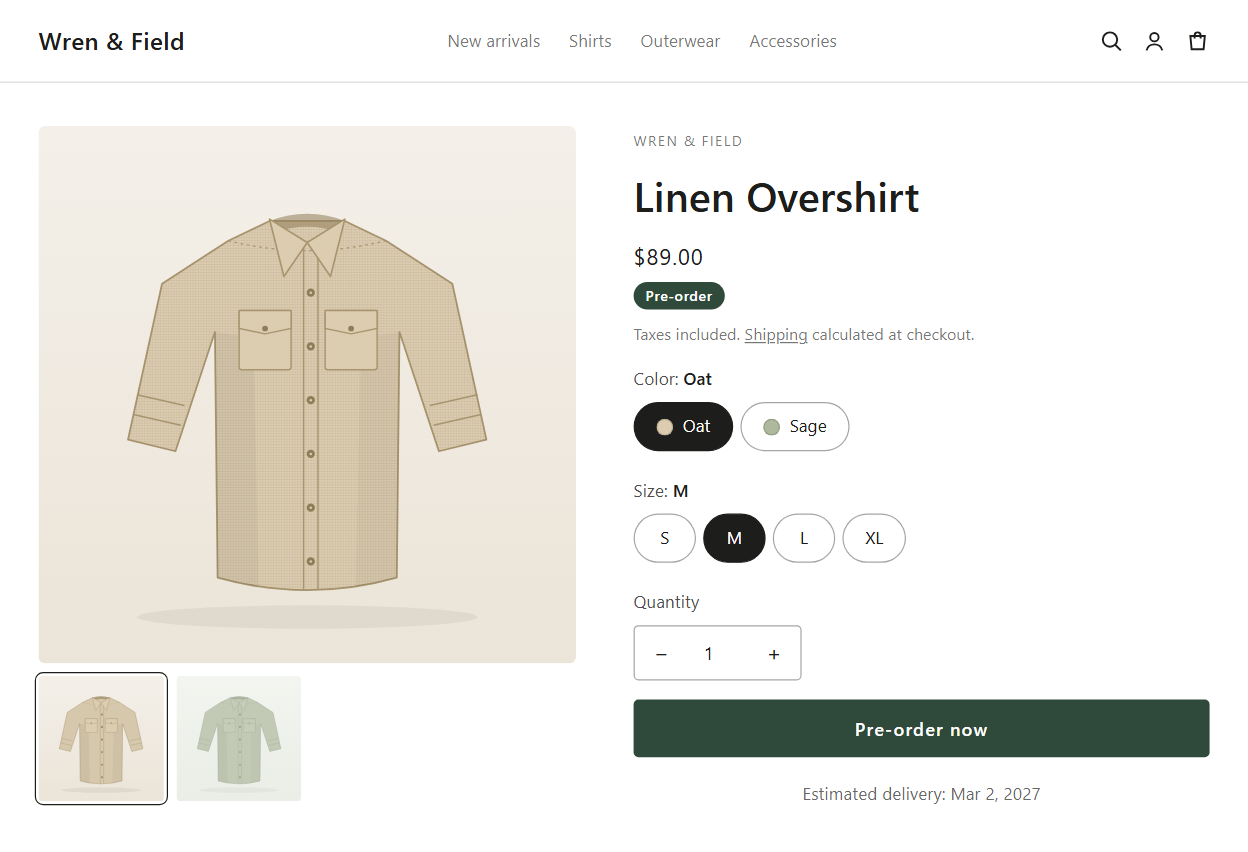
- Open the product on your live storefront in a private window, and pick the variant that should be on pre-order.
- Reload the page after every change in the app. The page reads the campaign when it loads, so a tab opened before you saved still shows the old state.
- The campaign editor's preview is a mock-up of your product, not your storefront. It shows the button even when the store can't.
2. Is the app embed on in the published theme?
- The Pre-order button comes from the app embed Pre-order & Back in stock. With it off, nothing shows.
- In the app, the Pre-orders page shows The app embed is inactive when it's off in your published theme. Click Activate app embed, turn it on in the theme editor, press Save, then Refresh status. Home's setup guide has the same step.
- The embed is set per theme. A newly published theme starts with it off (the app emails you when that happens), and a theme you're previewing needs it turned on too.
- Step by step: Enable the app embed.
3. Is the campaign Active?
| Status in the app | Why the button doesn't show | Fix |
|---|---|---|
| Inactive | New campaigns save as Inactive; deactivated ones too. | Open the campaign and click Activate. |
| Scheduled | The start date is still ahead. Coming soon campaigns show a Coming soon button instead. | Wait for the start, or change Set start date. |
| Expired | The end date passed, or for a deposit On a set date, the balance date passed. | Move or remove the end date (or pick a new balance date) and save. |
| Limit reached | The whole-campaign unit limit is used up. | Raise the limit on the Settings tab and save. See Pre-order limits. |
With Each variant limits the campaign stays Active, but a variant that reached its own limit stops showing the button. Click the campaign's number in the Units column on the Campaigns list to see units by variant.
4. Is the product (and variant) in the campaign?
- Specific products: check the product is listed and, if you picked variants, that the variant you're looking at is one of them.
- Collections: a product added to the collection joins within about 15 minutes. Check it isn't under Excluded products.
- Read the warnings under the Products card after saving. "Products show another campaign instead" means another active campaign wins on the storefront; "products are in another campaign" means a Specific products campaign holds them; "products can't be added by Shopify" means Shopify refused them. See Choose products for a campaign.
- A banner saying Saved in Shopify, but the app couldn't finish setting it up or Product changes are unfinished means the last save didn't fully land: click Retry.
5. Does the variant meet the Availability rule?
| Availability | Button shows when | Common surprise |
|---|---|---|
| When the product is out of stock | Track quantity is on and the variant's stock is 0 or below. | In-stock variants show Add to cart, which is correct. Untracked variants never sell out, so they never show it: turn on Track quantity, or click Show the button always in the Products card warning. |
| Always | Always, stock or not. | |
| Only while the product is in stock | The variant's stock is above 0. | At 0 it shows Sold out, which is correct: this option never turns on Continue selling. |
| Coming soon (scheduled launch) | After the start date. Before it, a disabled Coming soon button shows. |
6. Sold out or Notify me instead of Pre-order?
- A sold-out variant needs Shopify's "Continue selling when out of stock" to stay buyable. If it shows Sold out (or Notify me) at 0 stock, Continue selling is off.
- Check Allow purchases while out of stock on the campaign's Settings tab (Orders > Inventory). It's on by default.
- If someone turned Continue selling off by hand, the Products card warns "variants may not show the Pre-order button" and Home shows Inventory settings need review. Saving the campaign turns it back on.
- Right after a scheduled start, Continue selling turns on in the next status check (every 5 minutes). Sold-out variants can show Sold out until then; reload after a few minutes.
- If Shopify itself says the variant can't be sold (for example a fulfillment service withdrew it), the app shows Notify me instead of selling it.
7. Is the shopper's market selected?
If the campaign's Settings tab has Markets set to Specific markets, shoppers in other markets see the campaign's sold-out variants as Sold out. Check which market you're browsing in (your store's country or region selector), or switch the campaign to All markets. See Markets and locations.
8. On collection pages and quick add
- Product cards show the pre-order text only with Show on product cards turned on (Design tab > Button). It's off by default. The product page always works.
- The card needs your theme's own add to cart or quick add button. Featured product sections and quick view work like the product page.
9. Is your theme hiding or overwriting it?
- The app finds your theme's buy button, form and prices automatically. Heavily customized themes and page builders sometimes need help: Settings > Theme compatibility in the app has element selectors for the product form, the add-to-cart button and the message position.
- If the delivery message shows but the button still says Add to cart, check that Don't change the buy button text is off.
- The other Behavior options (Replace the buy button instead of relabeling it, Check the selected variant every second, Log diagnostics to the browser console) are meant to be turned on when our support asks, because they change how the app works with your theme.
10. Still not showing?
When a campaign first goes live, the app asks Do you see the Pre-order button? with a View product link. No, get help opens a support chat with the context filled in. You can also reach us by chat or email (support@etradepartner.io): send the product link, the variant and the campaign name. See Get support.
Pre-orders that show up on any theme
Automatic theme detection, built-in checks and help when your theme needs it. Free on the Shopify App Store.
Install free on ShopifyFrequently asked questions
›The button shows in the campaign preview but not on my store. Why?
The preview is a mock-up inside the app and doesn't depend on your theme or stock. On the store, check the app embed, the campaign status, the variant's stock against the Availability rule, and Continue selling.
›My sold-out product shows Notify me instead of Pre-order. What's wrong?
The variant isn't buyable at 0 stock, so back in stock takes over. Usually Continue selling is off: check Allow purchases while out of stock on the campaign's Settings tab, then save the campaign.
›I switched themes and pre-orders stopped working. Do I need to set the campaign up again?
No. The campaign is fine; the app embed is set per theme and starts off in a new theme. Turn on Pre-order & Back in stock under App embeds in the new theme and press Save.