
Which emails does the app send for pre-orders?
Updated · SMART Preorder & Back in stock (E-TRADE PARTNER)
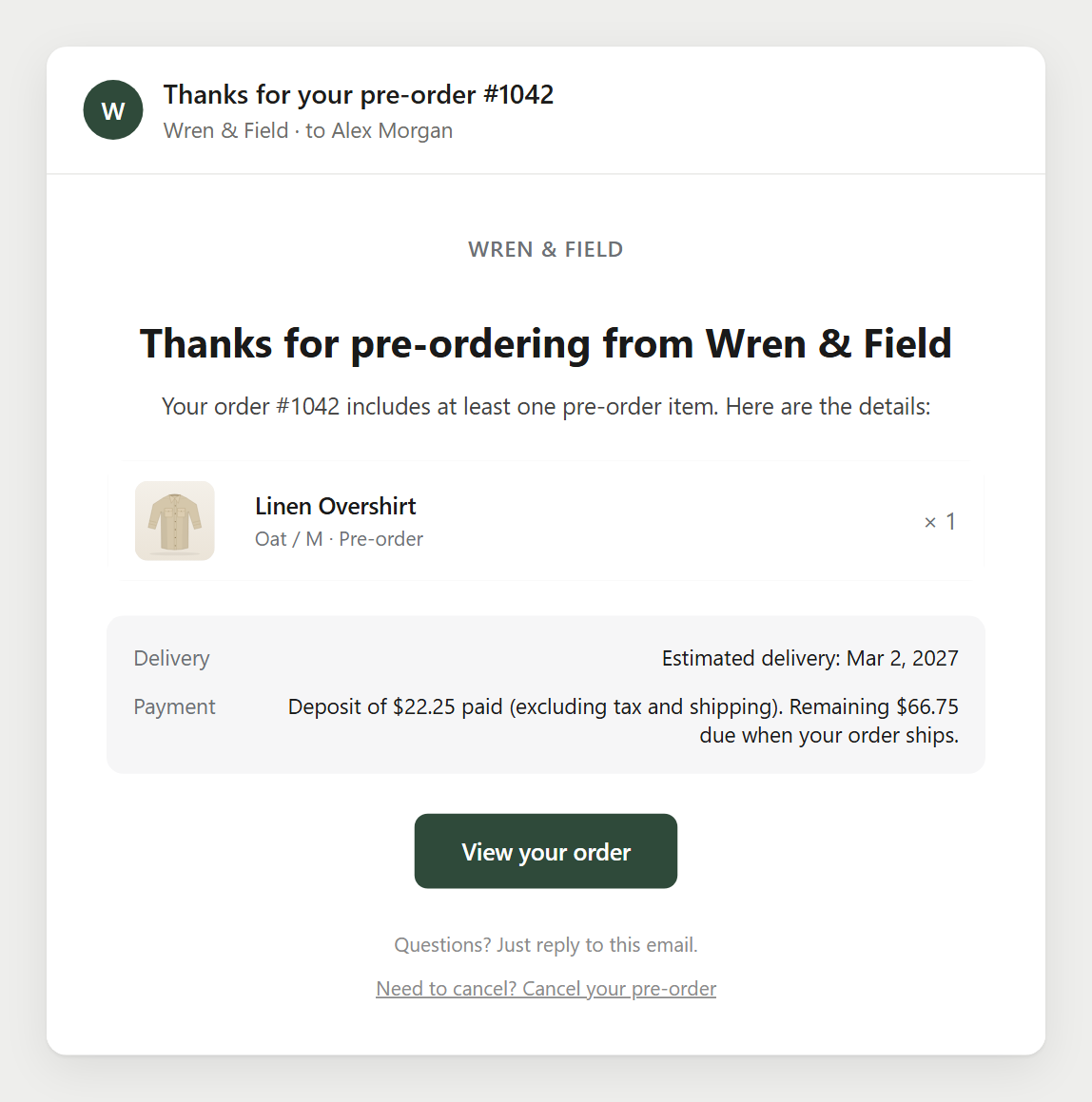
Four customer emails: the Pre-order confirmation (on by default), the Shipping update (sent by hand), the Upcoming charge reminder (off by default) and Payment failed (sent when every balance charge fails and you chose the payment link). Edit them in the app under Settings > Pre-order emails. They come on top of Shopify's own order notifications.
SMART Preorder & Back in stock is a free Shopify app for pre-orders, deposits, and back-in-stock alerts.
Try it freeOn this page
The emails and when they go
| Sent | On by default | Default subject | |
|---|---|---|---|
| Pre-order confirmation | Seconds after checkout, with the order's pre-order items, delivery and payment details. | Yes | Thanks for your pre-order #1001 |
| Shipping update | Only when you send it: from a campaign, the Orders tab or an order. | No switch, by hand only | Update on your pre-order #1001 |
| Upcoming charge reminder | A set number of days before a deposit balance is charged (default 3). | No | Reminder: your pre-order balance is due soon |
| Payment failed | When every balance charge attempt fails and When all attempts fail is Email the customer a payment link. Its Complete payment button opens Shopify's payment page for the order. | No switch, follows Deposits and cancellations | Complete your payment for order #1001 |
Edit an email
- In the app, open Settings. The Pre-order emails card lists the sender and each email with its status.
- Click an email. The editor has three tabs: Content (subject, preview text, heading, body, button text, footer text and, where it applies, the cancel link text and payment details), Brand (logo, colors and fonts, shared by every customer email) and Code (the whole email as HTML with Liquid). A preview shows desktop and mobile.
- Use Insert a variable to add order details (see the table below).
- Click Save. To turn the confirmation or the reminder on or off, use Activate or Deactivate at the top of its page.
- Click Send test email to get a copy with sample data at your store's own email address (up to 10 test emails a day).
Some stores, such as development stores, can't save custom code and always send the standard design built from the Content and Brand tabs.
Variables
| Variable | Shows | In |
|---|---|---|
| {{order_name}} | The order number, e.g. #1001 | All four |
| {{shop_name}} | Your store's name | All four |
| {{customer_name}}, {{customer_first_name}} | The customer's name | Confirmation, reminder, payment failed |
| {{delivery_message}} | The delivery estimate from the campaign | Confirmation |
| {{payment_line}} | Payment summary: deposit paid and remaining balance | Confirmation |
| {{message}} | The update message you type when sending | Shipping update |
| {{amount}} | The remaining balance amount | Reminder, payment failed |
| {{charge_date}} | The date the balance will be charged | Reminder |
| {{cancel_url}} | The page where the customer can cancel (empty when customers can't cancel) | Confirmation, shipping update, payment failed |
The confirmation's payment details
The confirmation picks one sentence for the Payment row, and you can edit each one on the Content tab:
- Deposit paid: "Deposit of {{deposit_amount}} paid (excluding tax and shipping). Remaining {{remaining_amount}} due {{balance_due}}."
- 0% deposit: "No charge today: your card is saved and {{remaining_amount}} is due {{balance_due}}."
- Full payment: "Paid in full at checkout."
- {{balance_due}} reads "on [date]", "when your order ships" or "later".
Shipping updates
- Send one from the Orders tab (bulk action Send shipping update), from an order (More actions), or from a campaign: when you move a campaign's delivery date later and it has open pre-orders, saving offers Send a shipping update? with a ready-made message.
- Write the Message (up to 2,000 characters). You can change the subject and heading for this send only, and Preview it first.
- It goes to open pre-orders that have an email address, one per order, in the customer's language when you've translated it. Fulfilled and cancelled orders are skipped.
- Shopify asks merchants to tell customers about a delay with a new ship date and their right to cancel or get a refund (Shopify Help Center). The shipping update includes the cancel link while customers may cancel.
Cancel link
The confirmation, shipping update and payment failed emails end with "Need to cancel? Cancel your pre-order" while Let customers cancel pre-orders that haven't shipped is on in Settings > Deposits and cancellations. The page it opens checks that nothing has shipped, then cancels the whole order with a full refund to the original payment method. Clear the Cancel link text to leave the line out of an email.
Sender, replies and language
- Emails come from no-reply@orders.smart-preorder.com with your Sender name, or your store name. Replies go to your Reply-to email, or your store contact email. Set both in Settings > Email sender, where you can also send from your own domain. See Sender address and deliverability.
- Each email goes in the order's customer language when you've added text for that language in the editor's Language picker. Empty fields use your default text. There's no automatic translation.
Sending limits
- Pre-order emails have no daily limit. The daily email limit applies to back in stock emails only.
- On newer stores, emails go out at a limited pace per hour. Any over it wait in the queue and go out in the following hours. A failed send is retried from the queue.
Emails to you
The app emails your store's email address in Shopify, in English, when something needs you: a balance failed every attempt, a refund raised what an order owes, Shopify never confirmed a balance payment, a balance was collected on a cancelled order, or a cancellation didn't go through. There's no email for a balance that was paid.
Using Klaviyo
With a Klaviyo private API key in Settings > Integrations, the app sends a Pre-order Placed event for every order with a pre-order item. You can build a Klaviyo flow on it and turn off the app's own confirmation.
Keep pre-order customers informed
Confirmation, shipping update, reminder and payment emails in your brand and your customers' languages. Free on the Shopify App Store.
Install free on ShopifyFrequently asked questions
›Does Shopify still send its own order confirmation?
Yes. The app doesn't change Shopify's notifications. The Pre-order confirmation is an extra email with the pre-order's delivery and payment details. Turn it off in Settings > Pre-order emails if you only want Shopify's.
›A customer didn't get the confirmation. Can I send it again?
Yes. Open the order in the app and use Resend confirmation, or select orders on the Orders tab and use the bulk action. The confirmation email must be turned on.
›Is the customer emailed when the balance is charged?
Shopify's own payment receipt covers a successful charge. The app emails before the charge (Upcoming charge reminder, if on) and after a final failure (Payment failed).