
Back in stock alerts for Shopify: Notify me button and restock emails
Updated · SMART Preorder & Back in stock (E-TRADE PARTNER)
SMART Preorder adds a Notify me button to sold-out products. Shoppers leave their email, and when stock that can really be sold online reaches your minimum, every waiting signup gets one back in stock email, with an optional reminder a day later. It's part of the same free app as pre-orders.
SMART Preorder & Back in stock is a free Shopify app for pre-orders, deposits, and back-in-stock alerts.
Try it freeOn this page
What shoppers see
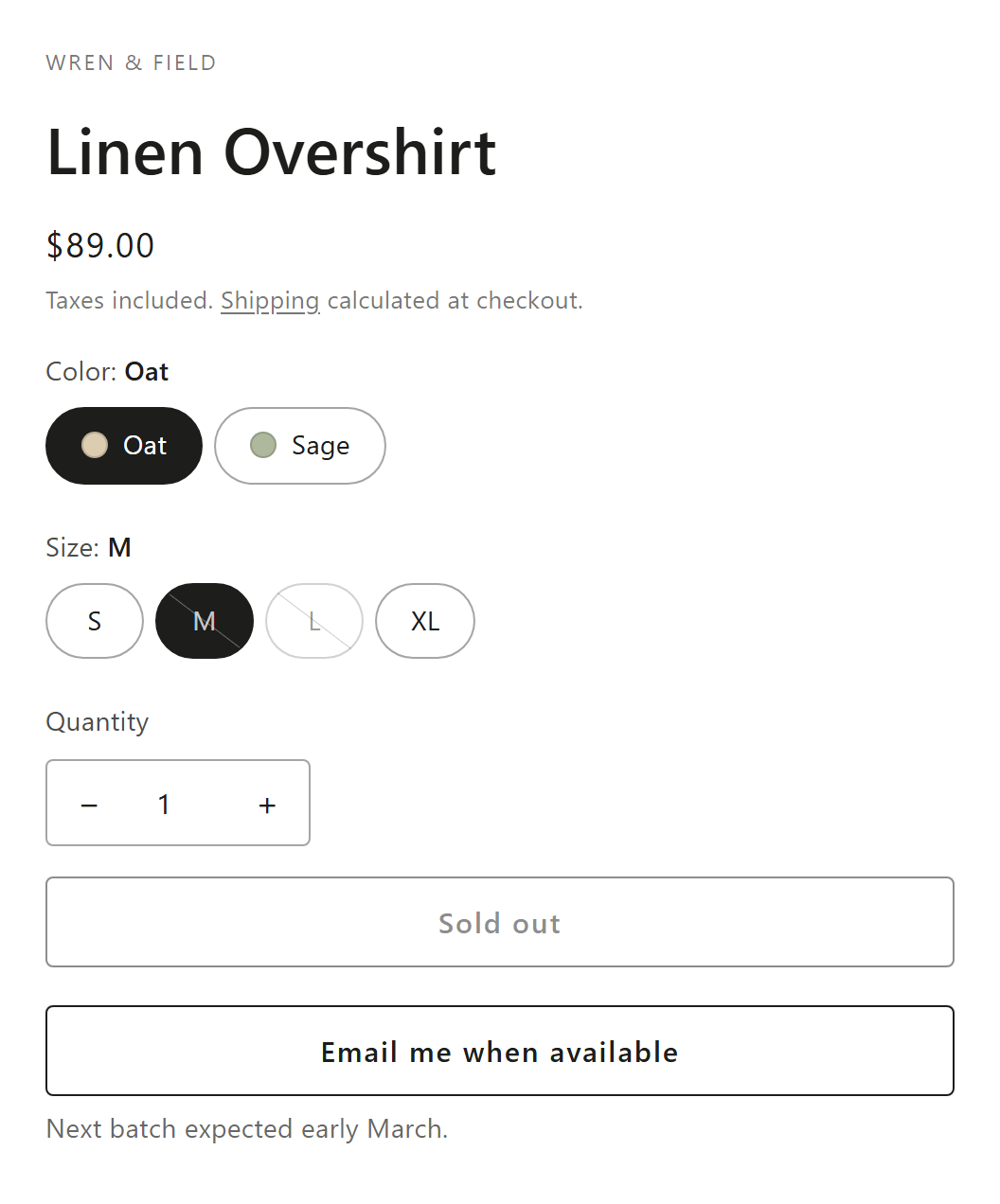
- A Notify me button under the sold-out add to cart button. The default text is "Email me when available", and it copies your theme's add to cart look unless you turn on Use custom style.
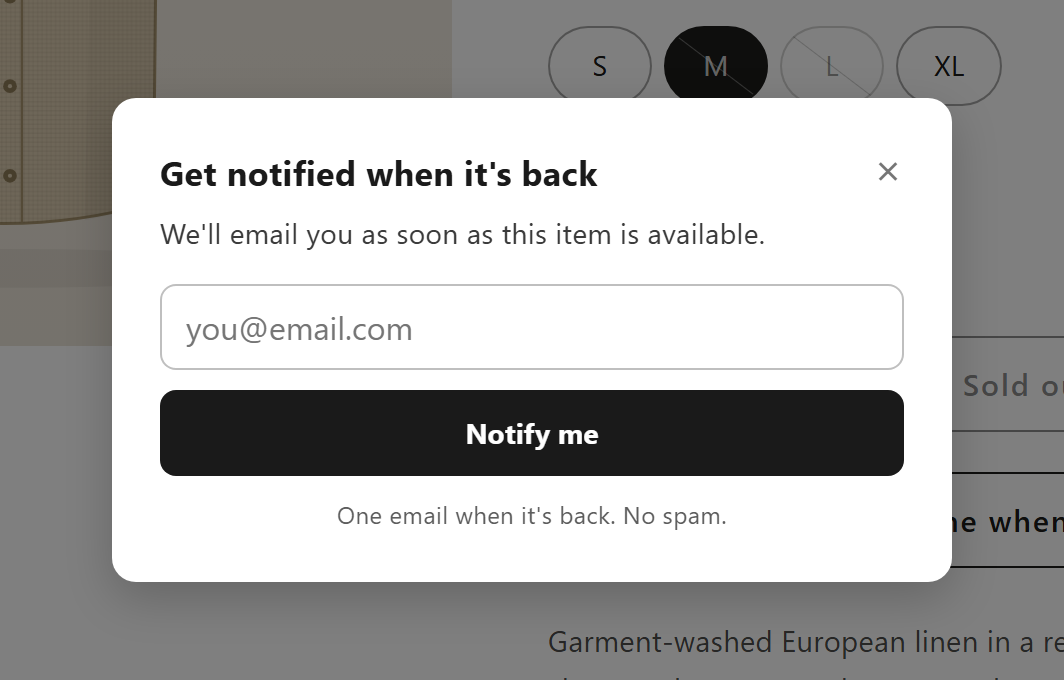
- A short signup form: "Get notified when it's back", an email field, an optional name field (Don't ask, Optional or Required) and the small print "One email when it's back. No spam."
- Optional marketing consent: with Ask for marketing consent on, a checkbox "Email me about news and offers", never pre-ticked. Every signup still gets the back in stock email, ticked or not.
- A confirmation: "You're on the list!". Addresses on domains that can't receive mail are turned away with "Enter a valid email address."
- Optional restock notes under the button for chosen variants, for example "Back March 15" (product page, up to 120 characters).
- Optional on product cards: with Show on collection, home and search pages, sold-out cards with a button show Notify me instead of Sold out. Products with several variants get a variant picker in the form.
- Optional on pre-order products: with Also show on pre-order products, Notify me also sits under the Pre-order button for shoppers who'd rather wait for stock.
Every text and color is editable on the Design tab, and each published store language gets its own texts. Setup: Set up Notify me and Translations.
Where it shows
- Choose All sold-out products (default), Products in specific collections, Products with specific tags or Specific products, with excluded products or tags.
- A variant counts as sold out when Shopify tracks its quantity and stock is 0 or below, or when Shopify says it can't be sold. Variants without tracked inventory never show Notify me.
- It's hidden during a coming-soon teaser and, unless you turn on Also show on pre-order products, on variants a live pre-order campaign is selling.
- Back in stock must be Activated and the app embed must be on. See Enable the app embed.
When the alerts go out
- A stock change in Shopify wakes the app within seconds, and a pass every 5 minutes picks up anything left. The app reads stock again before sending.
- It sends once the variant has at least your Minimum quantity (default 1) of real stock at active locations that fulfill online orders. Shopify's Continue selling, a live pre-order and stock at POS-only locations don't count.
- The product must also be active, published and sellable. For a signup made in a market, the variant must be sellable in that market.
- Stores with several online locations can turn on Only count stock at chosen locations for each market, so stock is added up only across each market's chosen locations.
- Every waiting signup for that variant is emailed, oldest first, not just as many as the units that came back.
- Each signup gets one automatic back in stock email. Later restocks don't email it again unless the shopper signs up again.
- You can also send by hand from Signups: Send, Resend or Send to all waiting. Manual sends go out even if the product is still sold out.
More: Restock alert emails.
The emails
| Default | When | |
|---|---|---|
| Signup confirmation | Inactive | Right after a shopper signs up |
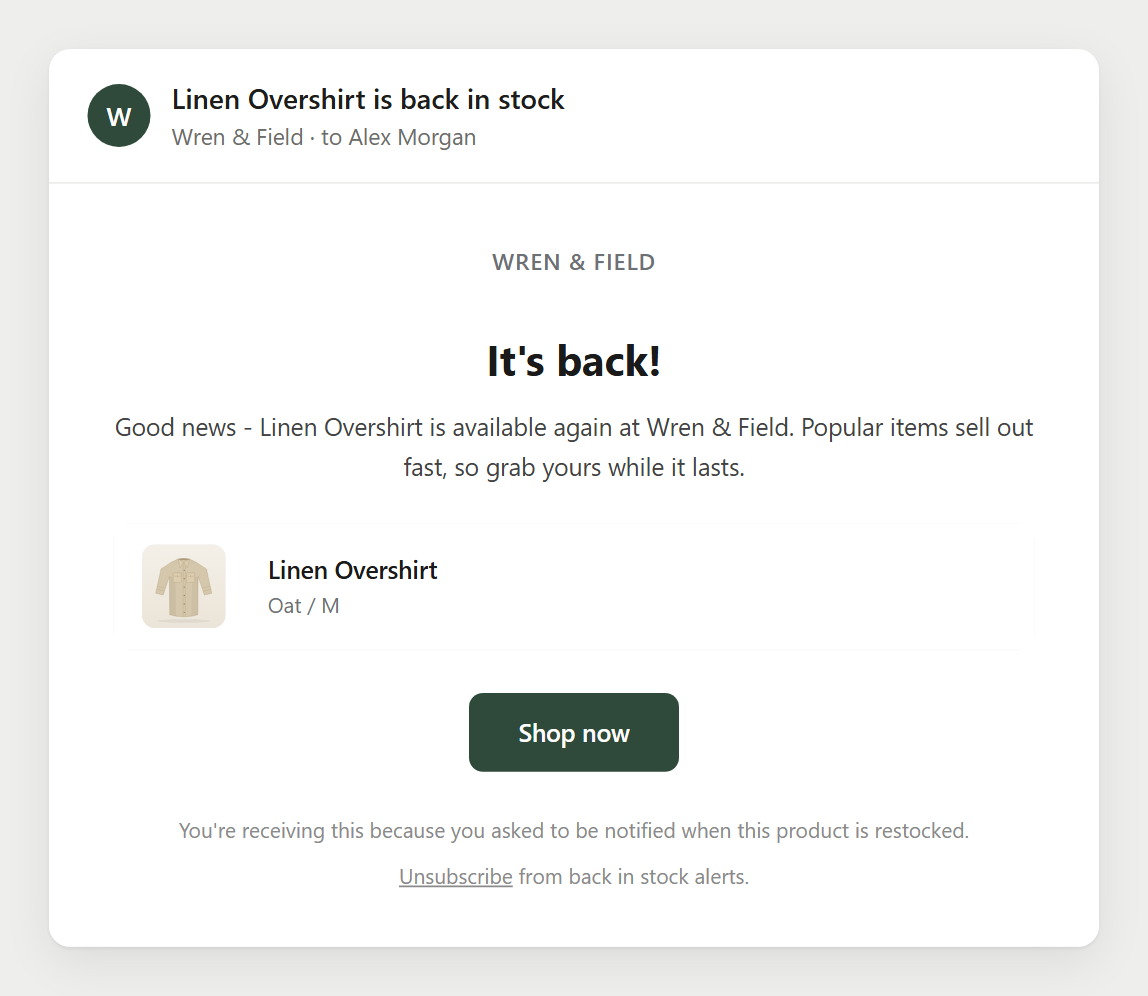
| Back in stock email | Active | When you restock, or by hand from Signups |
| Reminder email | Inactive | A day after the back in stock email, if the shopper hasn't bought and it's still in stock |
- The editor has Content (subject, preview text, heading, body, button, footer), Brand (logo, colors, font, social links) and Code (your own HTML and Liquid; not offered to new stores or stores with few paid orders yet).
- Button goes to the Product page or straight to Checkout with the variant in the cart.
- Buyers get the email in the language they shopped in, once you add that language's text.
- Every email has an unsubscribe link and a one-click unsubscribe header. Shoppers can stop alerts for one product or for the whole store.
- Emails come from the app's alerts address with your Sender name and Reply-to email, or from your own domain once you add its three DNS (CNAME) records in Settings > Email sender. See Sender address and deliverability.
Signups and results
- Signups lists every signup with the tabs All, Waiting, Notified and Bought, and statuses such as Clicked and Unsubscribed.
- Most wanted products shows your top 25 products by waiting signups, so you can decide what to restock first.
- Recovered revenue counts purchases of the exact variant by the same email within 7 days of the back in stock email.
- Import CSV brings in a waitlist from another app (up to 2,000 rows per file; exports from Notify Me and STOQ are recognised). Export CSV downloads up to 10,000 rows. Like the Code tab, import isn't offered to new stores or stores with few paid orders yet.
See Waitlist signups.
Integrations
- Klaviyo: add a Private API key in Settings > Integrations to send the events "Back in Stock Signup" and "Back in Stock Notified". Signups who tick marketing consent can join a List for marketing signups. The app still sends its own emails.
- Shopify customers: a ticked consent box subscribes the shopper to your Shopify email marketing and adds the tag "back-in-stock".
- Shopify Flow: triggers Back in stock signup added and Back in stock alert sent.
Who it suits
- Stores whose bestsellers sell out between deliveries.
- Drops and limited editions, where demand shows in the waitlist before you reorder.
- Stores with several warehouses or markets, which need alerts to follow stock a buyer can actually get.
- Stores moving from another back in stock app, with a CSV of existing signups.
- Stores that also pre-order: Notify me and the Pre-order button work from the same app embed.
Limits to know
- Email only. No SMS or push notifications.
- A daily allowance. Back in stock emails count toward a daily limit that depends on your store's size and order history; emails over it wait until the next day (UTC). Order emails don't count. See Plans and limits.
- Deactivating hides the button only. Signups still get the back in stock email when you restock. To stop it, deactivate the email in Notifications.
- Password-protected stores still send. A restock while your password page is on emails the waitlist, and the button lands on the password page.
- A pre-order isn't a restock. Opening a pre-order doesn't email the waitlist; use Send to all waiting if you want it to.
- Imported signups get no signup confirmation and have no market, so with market locations turned on they keep waiting.
- Marketing consent is single opt-in.
Turn sold-out pages into a waitlist
Install SMART Preorder, open Back in stock, click Activate and turn on the app embed. Back in stock alerts are free.
Install free on ShopifyFrequently asked questions
›Will a shopper get an email every time I restock?
No. Each signup gets one automatic back in stock email, plus the optional reminder. Later restocks don't email it again unless the shopper signs up again.
›Does turning on Continue selling send alerts?
No. Alerts wait for real stock at locations that fulfill online orders. Continue selling at zero stock never triggers one.
›If 3 units come back and 50 people are waiting, who gets the email?
All 50, oldest signup first, once stock reaches your Minimum quantity. Raise the minimum if you want alerts to wait for a bigger delivery.
›Can I email the waitlist myself?
Yes. In Signups, use Send on a row, tick rows and send, or use Send to all waiting in Most wanted products. Manual sends skip the stock check.